 Kerux
How to use Kerux
Kerux is your everyday Christian companion: prayer reminders with church bells, the whole Bible to read and listen to, an AI you can ask anything, a Christian community, and a Safety button for emergencies. This guide walks through every part of the app, step by step.
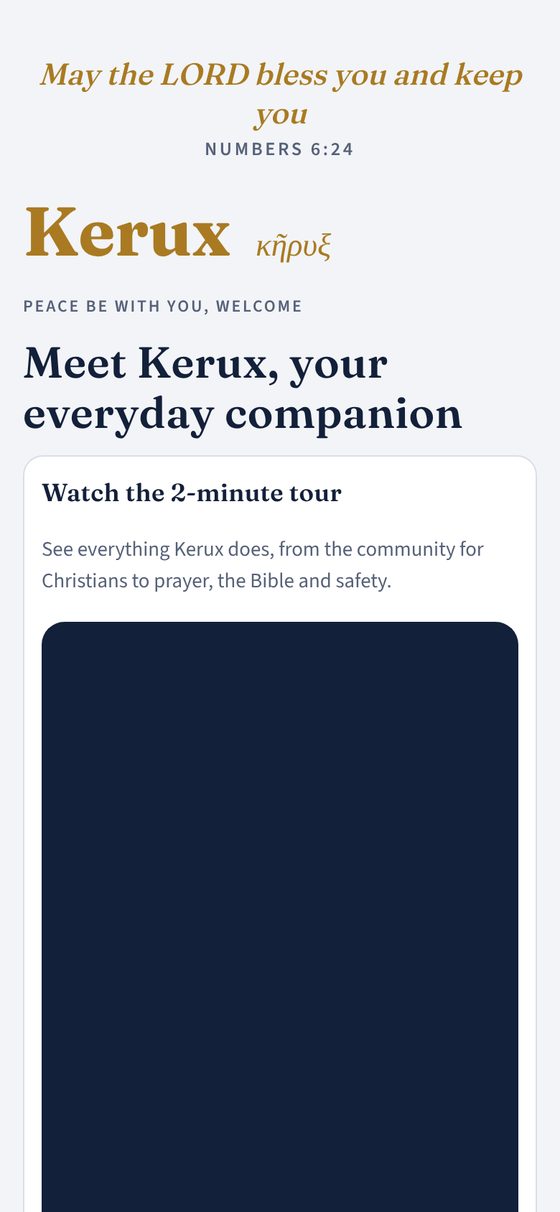
Watch the 2-minute tour
See everything Kerux does, from the community for Christians to prayer, the Bible and safety.
What's in this guide
👋 First time opening Kerux
The first time you open Kerux, a welcome screen introduces the app.
- Choose your language and, if you like, type the name Kerux should call you.
- Tap Start my 7‑day free trial to try Kerux Premium, or tap Not now, use the free features.
- When your phone asks, allow notifications so your prayer reminders can ring.
Kerux Premium ($9.99 a month after a 7-day free trial) adds Ask Kerux and the Kerux Community. Google Play or the App Store handles the payment, and you can cancel anytime.
You can see this welcome again later: More → Privacy & safety → Show the welcome again.
☀️ Today
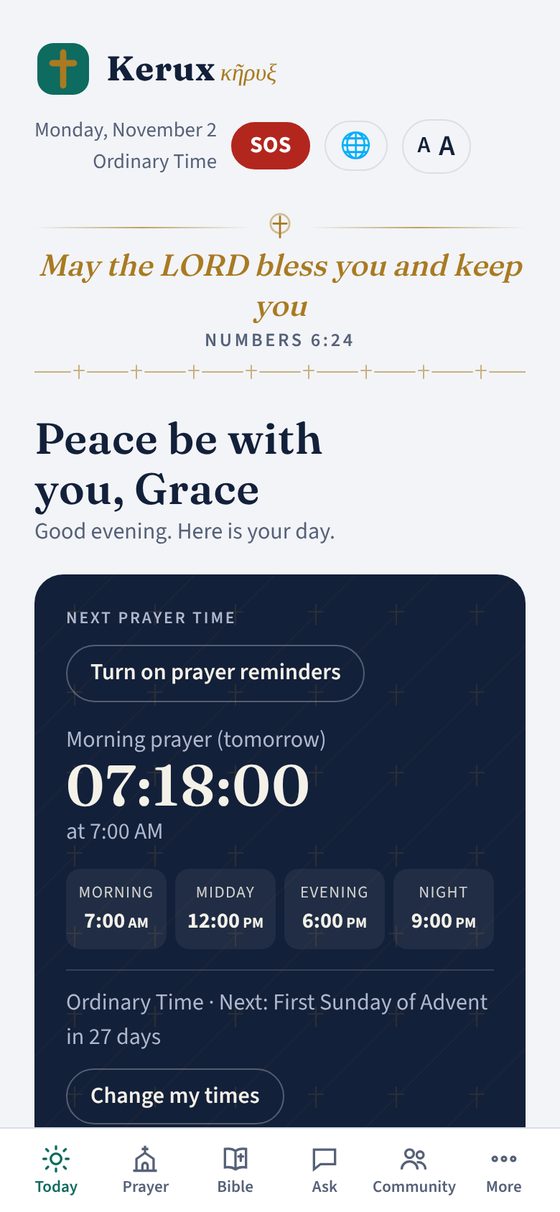
Today is the first screen you see. From top to bottom:
- Peace be with you, with today's date and the season of the church year (for example Advent, Lent or Ordinary Time).
- Next prayer time with a live countdown. Kerux starts you with four daily times: Morning 7:00, Midday 12:00, Evening 6:00 and Night 9:00. Tap Turn on prayer reminders to be reminded, or Change my times to pick your own.
- A Name of God for today, such as the Good Shepherd or the Prince of Peace.
- Verse of the day. Tap Reflect on this with Kerux to talk about it, or Read the chapter to read the whole chapter.
- Coming up in the church year: the next days such as Christmas or Easter, with days to go.
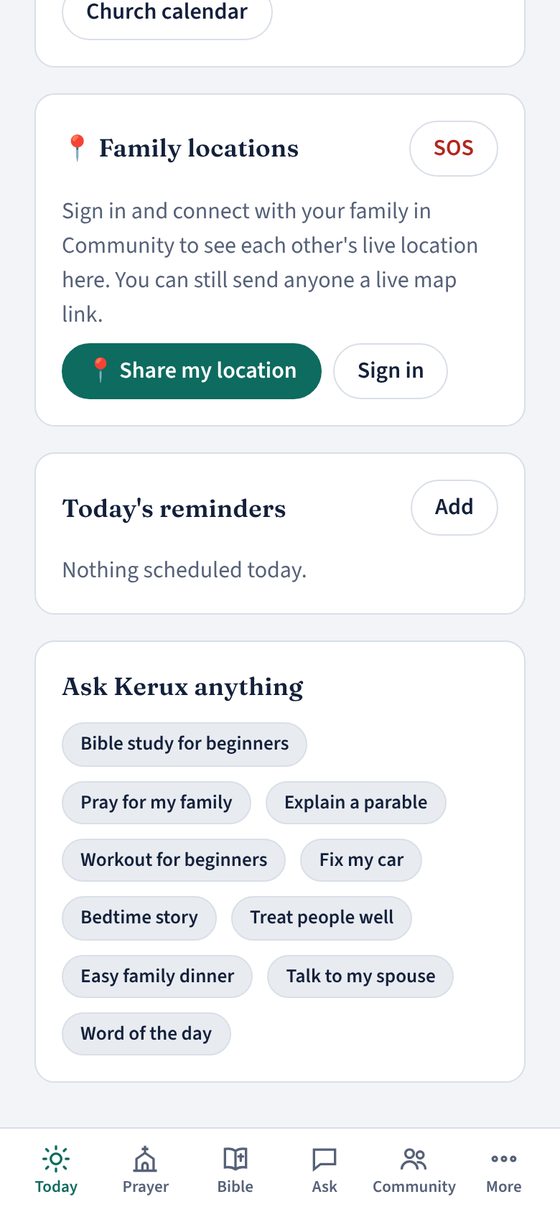
Scroll down for more:
- 📍 Family locations: who is sharing their location with you, and a 📍 Share my location button. See Family locations.
- Today's reminders: tap Add to set a reminder.
- Ask Kerux anything: quick ideas such as Pray for my family, Explain a parable, Fix my car or Bedtime story. Tap one and Kerux starts answering.
🙏 Prayer Free
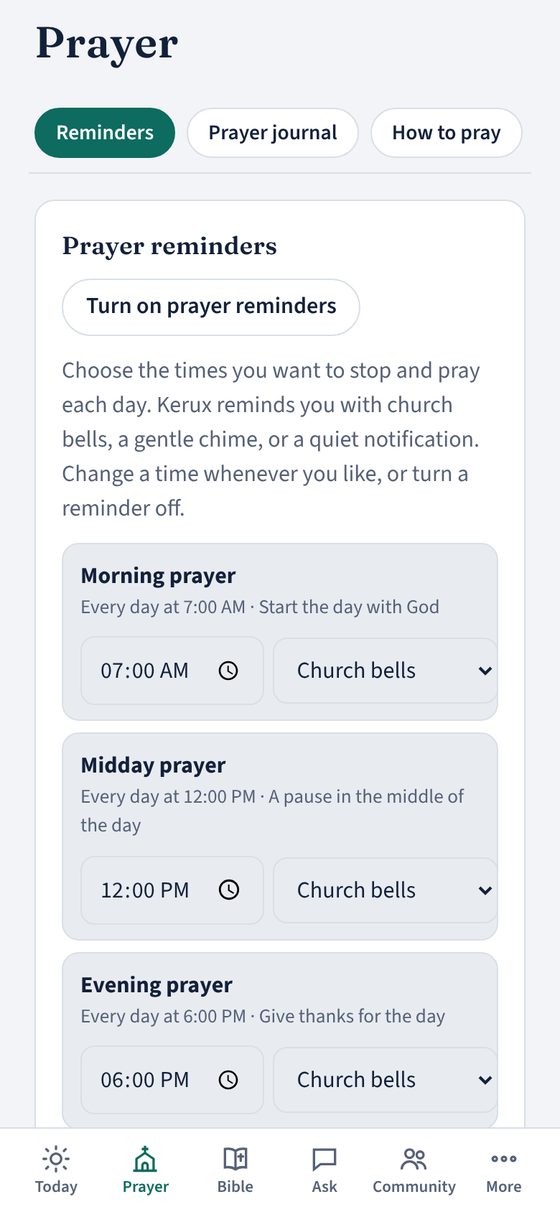
Prayer reminders
- Tap Prayer, then Reminders.
- Set your times: Morning, Midday, Evening and Night. Change any time to suit your day.
- For each time choose Church bells, Gentle chime, your own sound, Notification only or Off.
- Set the volume, then tap Turn on prayer reminders.
Want a different sound? Tap Choose a sound file to use a recording you like, such as your own church's bells. It stays on your phone.
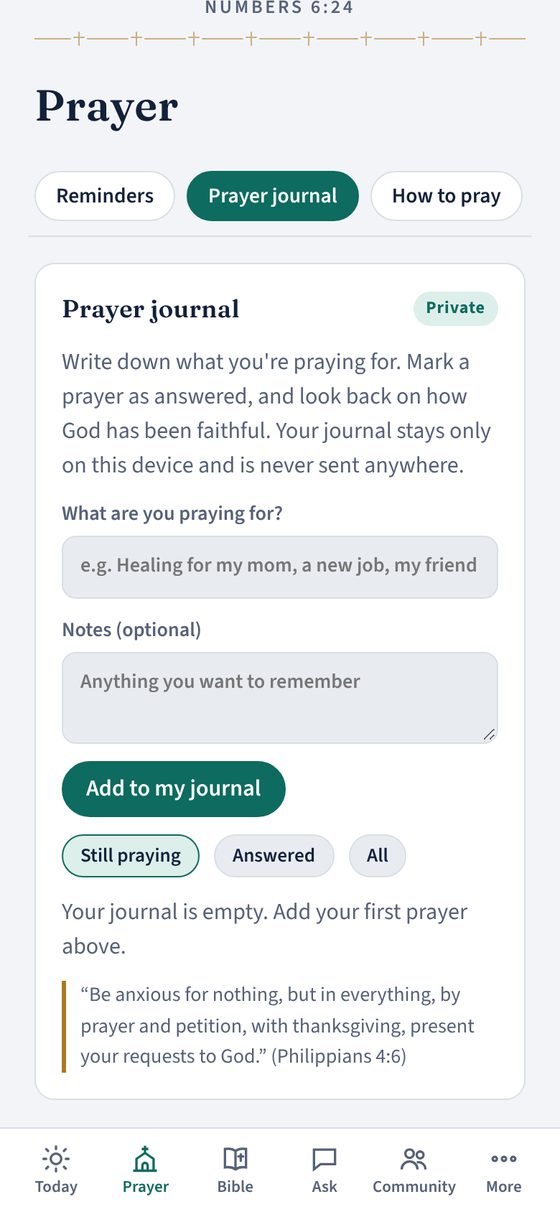
Prayer journal Private
- Tap Prayer journal.
- Type what you're praying for, add notes if you like, and tap Add to my journal.
- When a prayer is answered, mark it Answered. Switch between Still praying, Answered and All to look back on how God has been faithful.
How to pray
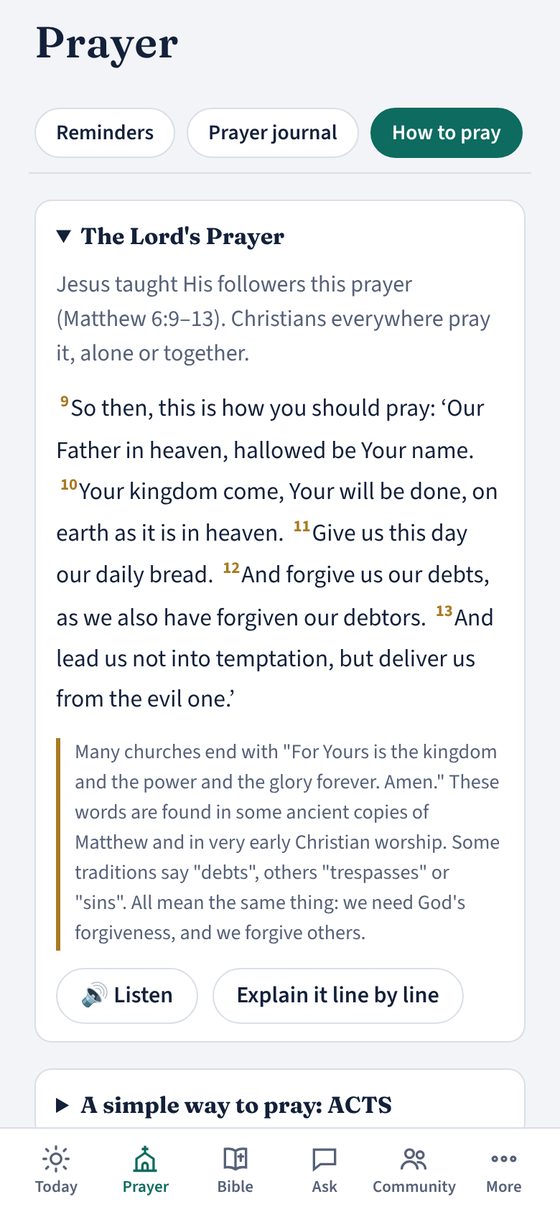
Tap How to pray for simple help:
- The Lord's Prayer. Tap 🔊 Listen to hear it, or Explain it line by line.
- ACTS: a simple pattern of Adoration, Confession, Thanksgiving and Supplication.
- Praying the Psalms, with a few psalms to start with.
- Short prayers for morning, evening and before a meal. Tap Write a prayer with Kerux for one of your own.
- The Apostles' Creed, and the many ways Christians pray.
Prayer counter
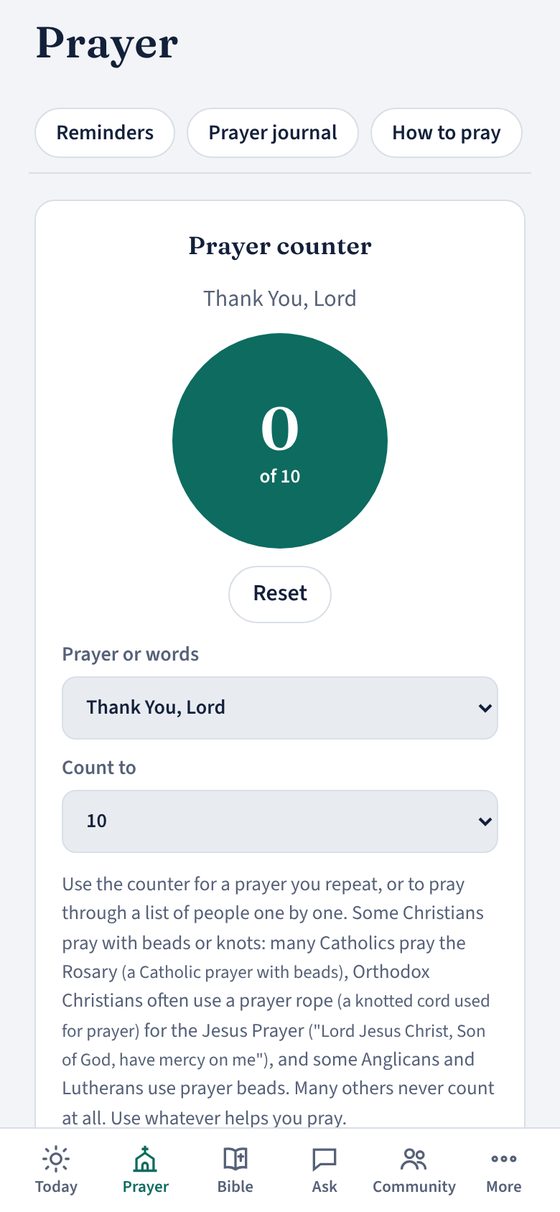
Tap Prayer counter. Choose a prayer or type your own words, pick how many times (10, 12, 33, 50, 100 or no limit), then tap the big circle each time you pray. Tap Reset to start again. It also works for praying through a list of people one by one.
Church
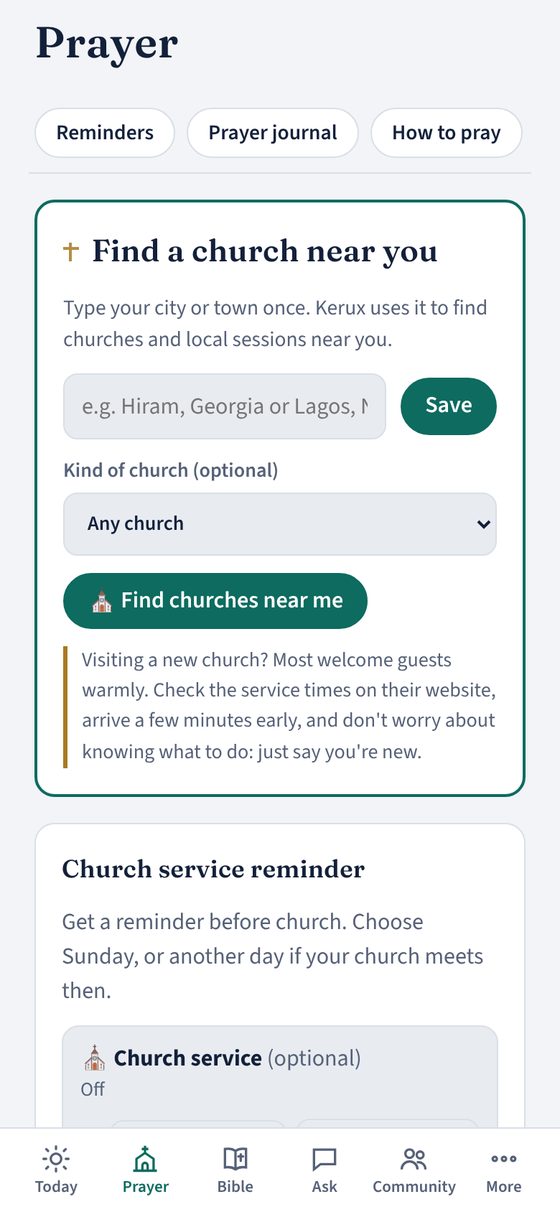
- Find a church near you: type your city once, pick a kind of church if you like (Catholic, Orthodox, Baptist, Methodist and more), and tap ⛪ Find churches near me.
- Church service reminder: choose the day your church meets, the service time, and how early you'd like to be reminded.
- Watch a service live: search by church or city, or see what's live right now.
- Missed church? Pick a Sunday to find recorded services from that date.
- Christian traditions, briefly: a short, respectful look at how churches differ.
Tracker
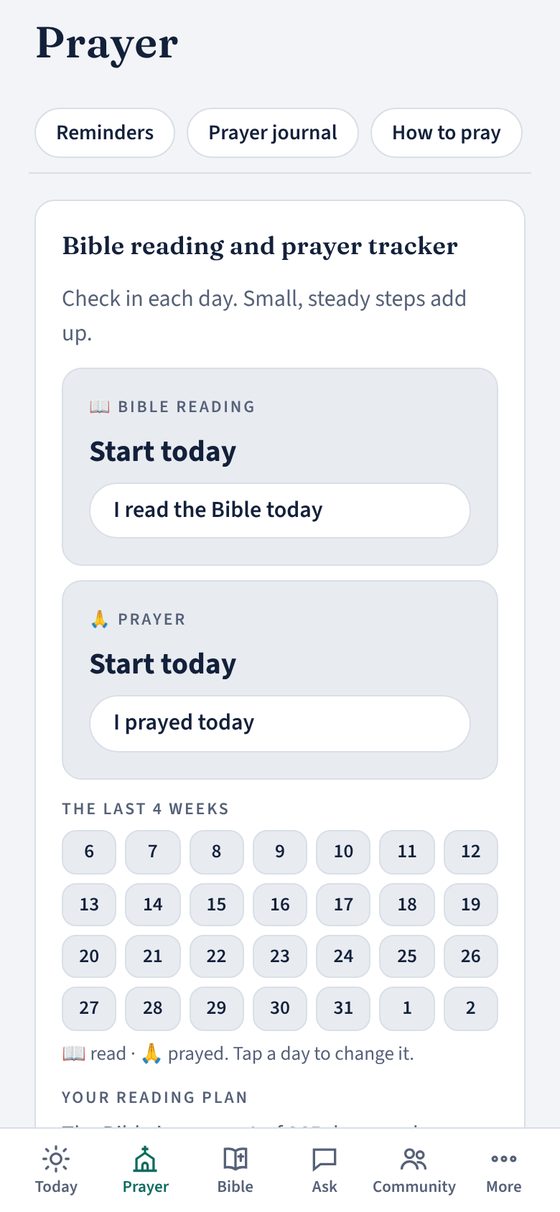
Tap Tracker and check in each day: tap I read the Bible today and I prayed today. You'll see the last 4 weeks at a glance, and you can tap a day to change it. Missed a day? That's okay. Just start again today.
📖 Bible Free
Read & listen
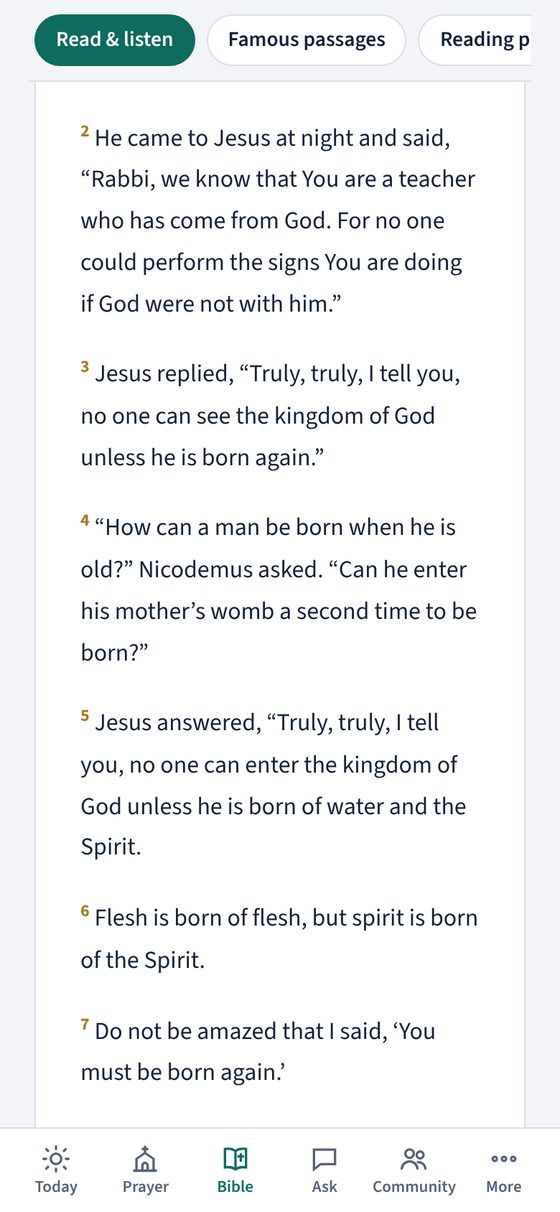
- Tap Bible, then Read & listen.
- Choose a book and a chapter. Use ← Previous chapter and Next chapter → to move along.
- Tap 🎧 Listen and follow along, then ▶ Play. Each verse lights up as it is read aloud.
- Change the speed, and turn on Keep going to the next chapter if you'd like it to keep reading.
Tap any verse to listen to it, copy it, share it, post it to the community, or ask Kerux about it.
Reading plans
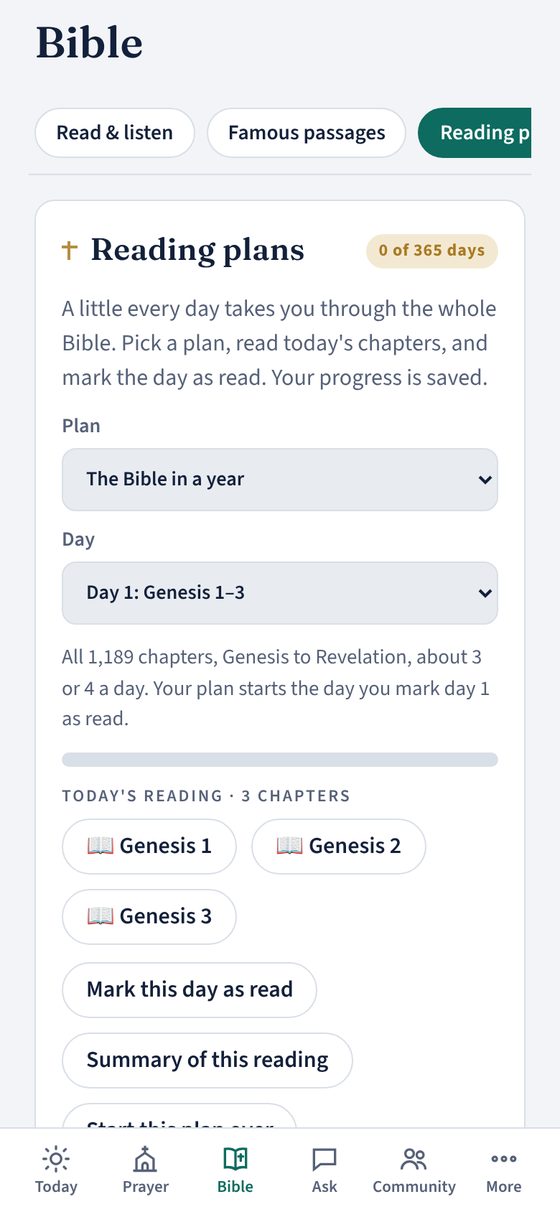
Tap Reading plans and pick a plan:
- The Bible in a year: all 1,189 chapters over 365 days.
- The New Testament in 90 days.
- The Gospels in 30 days.
- Psalms & Proverbs in a month.
Read today's chapters, then tap Mark this day as read. Your progress is saved. Tap Summary of this reading for a short overview.
More ways to read
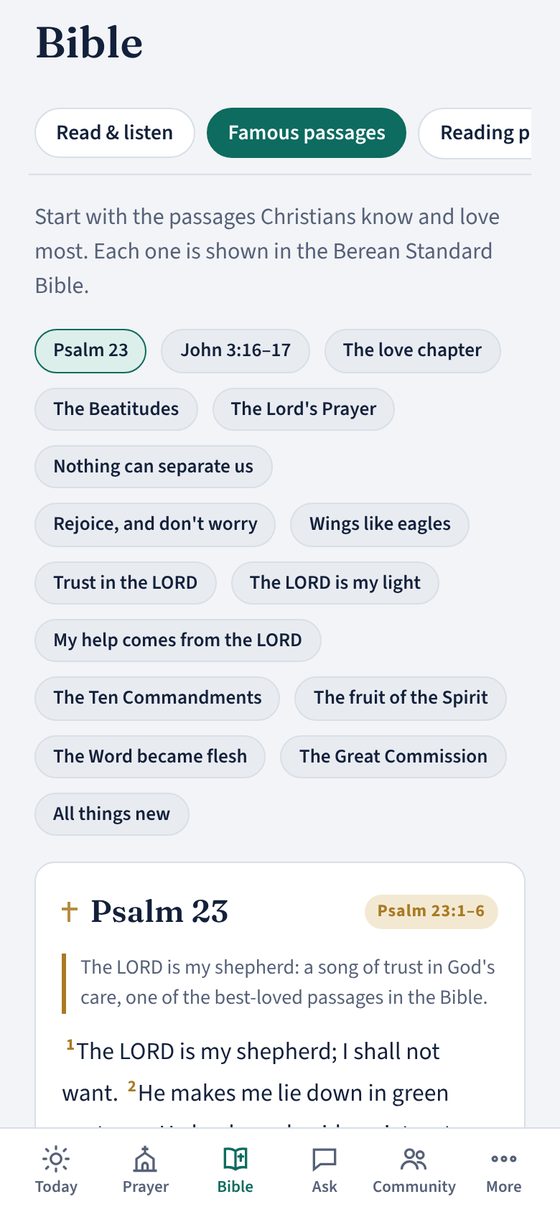
- Famous passages: start with the passages Christians know and love most, such as Psalm 23, John 3:16, the Beatitudes and the love chapter.
- Names of God: the names and titles of God in the Bible, and what each one means.
- Why the Bible: why the Bible matters in daily life, and where to start if you're new.
- All books: all 66 books. Tap a book to open it.
💬 Ask Kerux Pro
Ask Kerux works like a chat. Ask anything, the same way you would ask a knowledgeable friend. No sign-in is needed. Kerux uses one of the most capable AI models available, and it can search the web for current information such as prices, news, opening hours and events.
- Tap Ask at the bottom.
- Pick the language for answers under Answer in.
- Pick a topic button if you like, such as Faith & Bible, Talk it through, Marriage & family, Recipes, Car & home repair or Money & business. Ask anything works for everything.
- Type in the box, or tap the 🎤 microphone and speak.
- Tap Send.
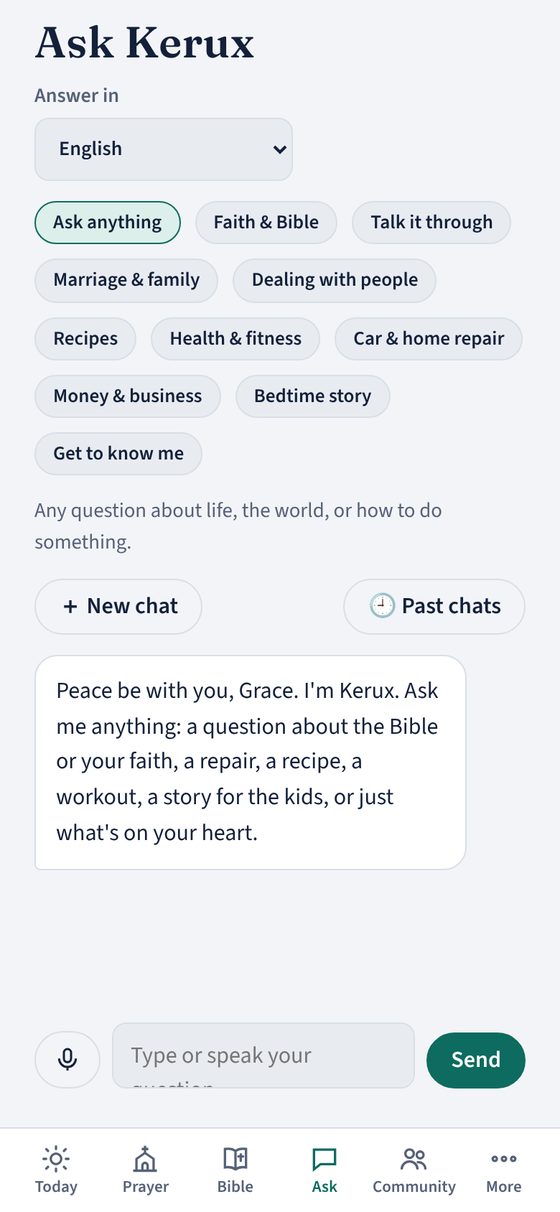
Kerux's answer appears in the chat as it is written. Then you can:
- Ask a follow-up question. Kerux remembers the conversation.
- Tap Listen to hear the answer read aloud.
- Tap Watch videos when you'd like a video on the topic too.
- Tap Stop to stop a long answer.
- Your chats are saved on your phone. Tap 🕘 Past chats to reopen or delete one, or + New chat to start fresh.
When a question needs up-to-date information, you'll see 🔎 Searching the web… for a few seconds, and Kerux names its sources in the answer. When Kerux quotes the Bible, it gives the reference so you can look it up. Where Christian traditions see something differently, it tells you so.
If something goes wrong (for example, no internet), Kerux says so and shows Try again. Your question is still in the box.
Weekly chats
Kerux Premium includes a weekly allowance of chats. Short questions use very little; long answers and web searches use more. When you've used half or more, a line under the message box shows how much is used and when it resets.
If you use them all before the week ends, Kerux shows when they reset and offers two choices:
- Get more chats · $4.99: a one-time purchase through Google Play, not a subscription. Extra chats you don't use carry over to later weeks.
- I'll wait for the reset: your question stays in the box, ready to send after the reset.
👥 Community Pro
Sign in
- Tap Community, then Profile (or Sign in or create your account).
- Type your email and tap Send my code.
- Open the email from Kerux and type the 6-digit code into the app. No password needed.
- Add your name and a photo or avatar if you like.
The Community is for adults 18 and older.
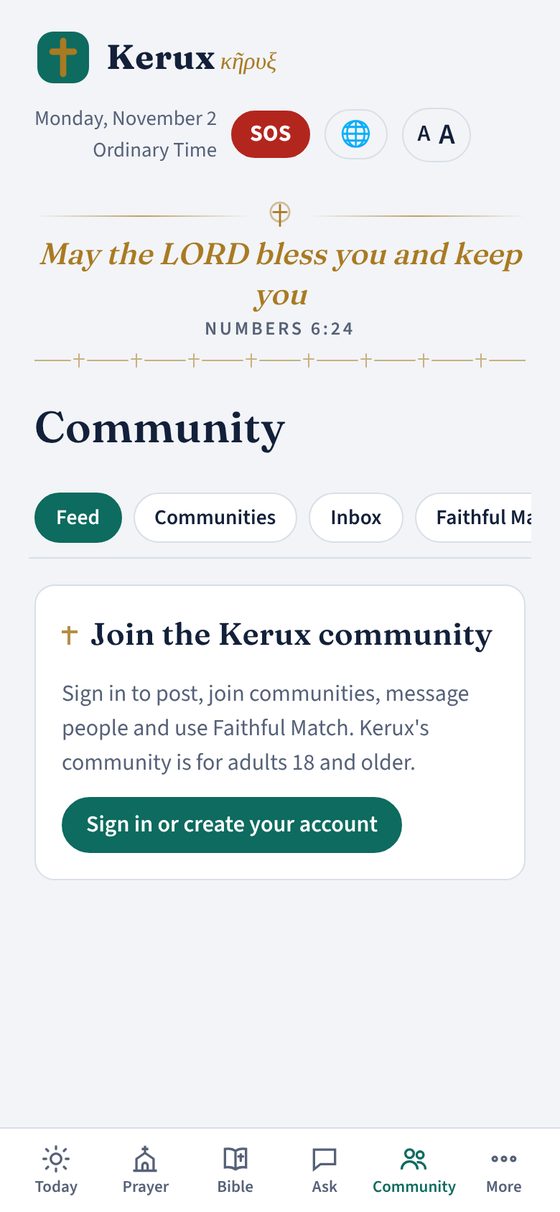
Tap the ⋯ on any post to Report post or Block someone who breaks the community rules.
🚨 Safety & SOS Free
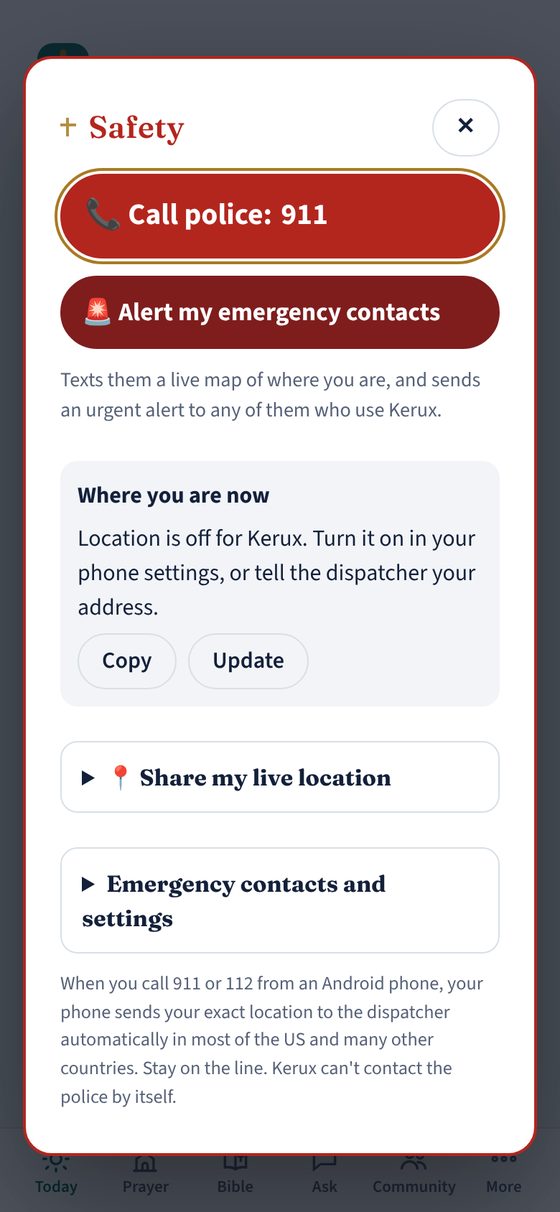
Tap the red SOS button at the top of any screen.
- 📞 Call police: 911 calls emergency services right away. On Android, your phone also sends your location to the dispatcher in most of the US and many other countries.
- 🚨 Alert my emergency contacts sends your family and friends a live map of where you are, with an urgent alert.
- Where you are now shows your exact location. Tap Copy to paste it into a message, or Map to see it.
Stay on the line with the dispatcher. Kerux can't contact the police by itself.
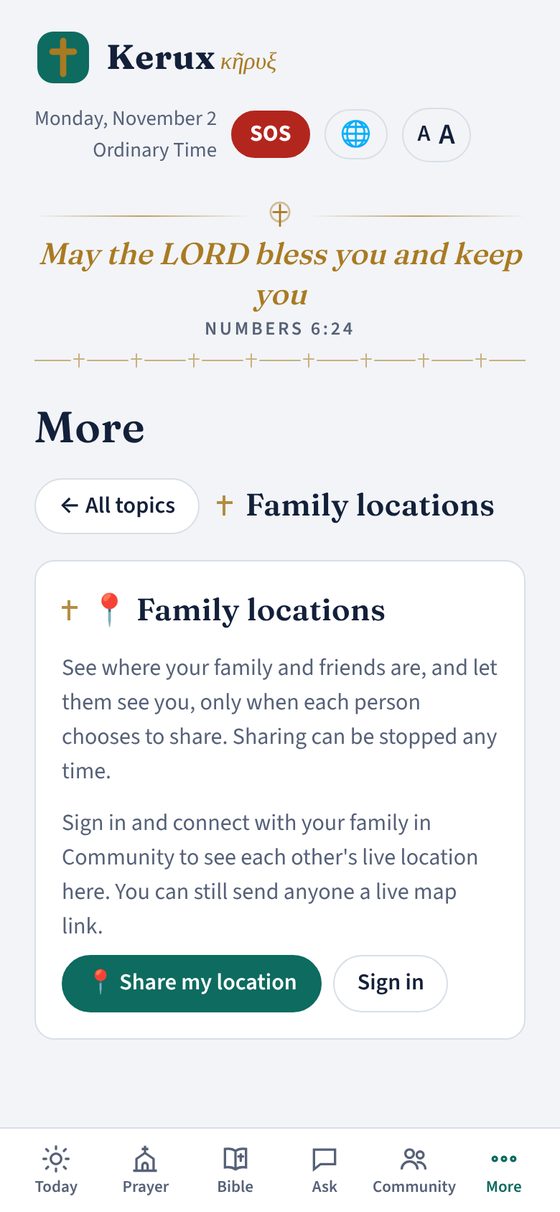
📍 Family locations Free
Share your live location
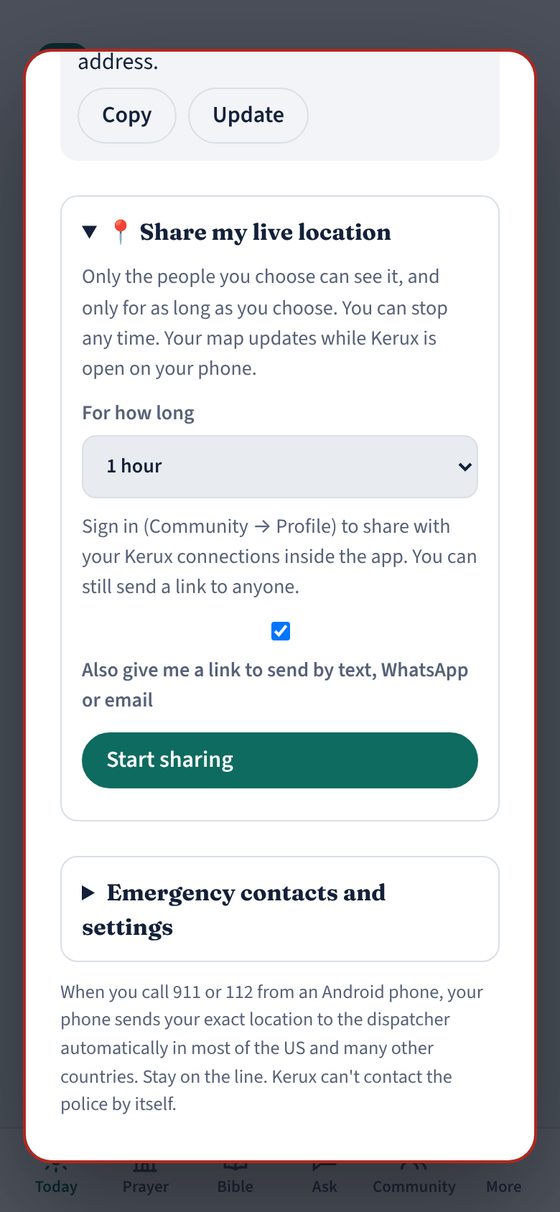
- Tap 📍 Share my location on Today (or open SOS → Share my live location).
- Choose how long: 15 minutes, 1 hour, 8 hours, or until you stop it (up to 7 days).
- Choose who can see it. If you're signed in, tick your Kerux connections. Leave Also give me a link to send by text, WhatsApp or email on to share with anyone.
- Tap Start sharing.
The people you chose see you move on a map in real time. Tap Stop anytime to end sharing right away.
See where your family is
When family members share with you, they appear in the 📍 Family locations card on Today and in More → Family locations.
- Each person shows live now or when they were last updated.
- Tap View map to follow them on a map and get directions.
- If someone pressed SOS, they show in red with needs help.
To see each other, both people need to be signed in and connected in the Community, and each person chooses to share. Nobody can see your location unless you share it.
••• Everything in More
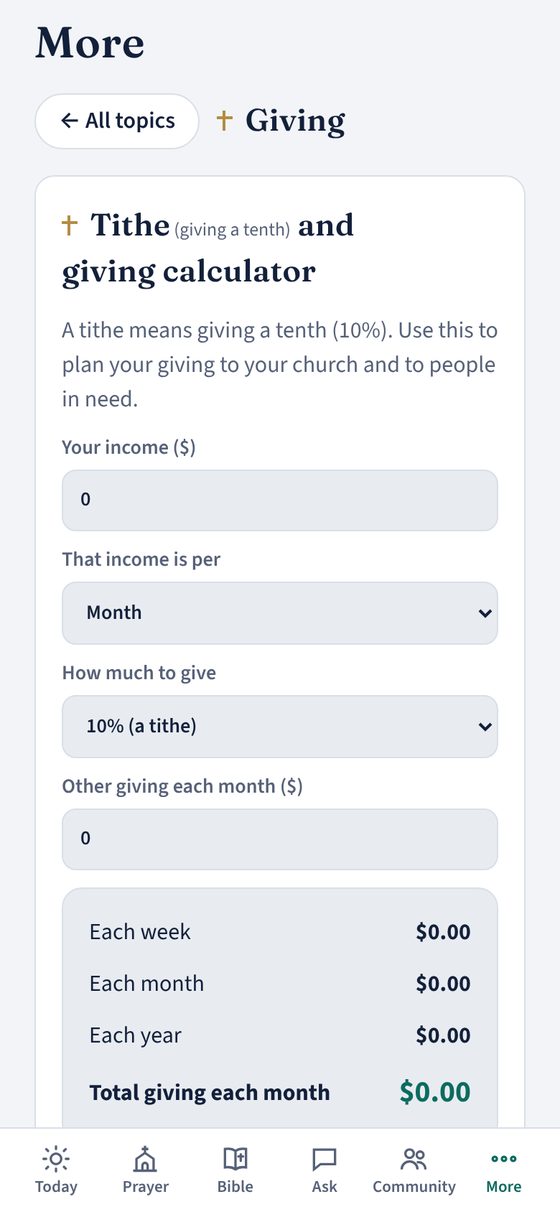
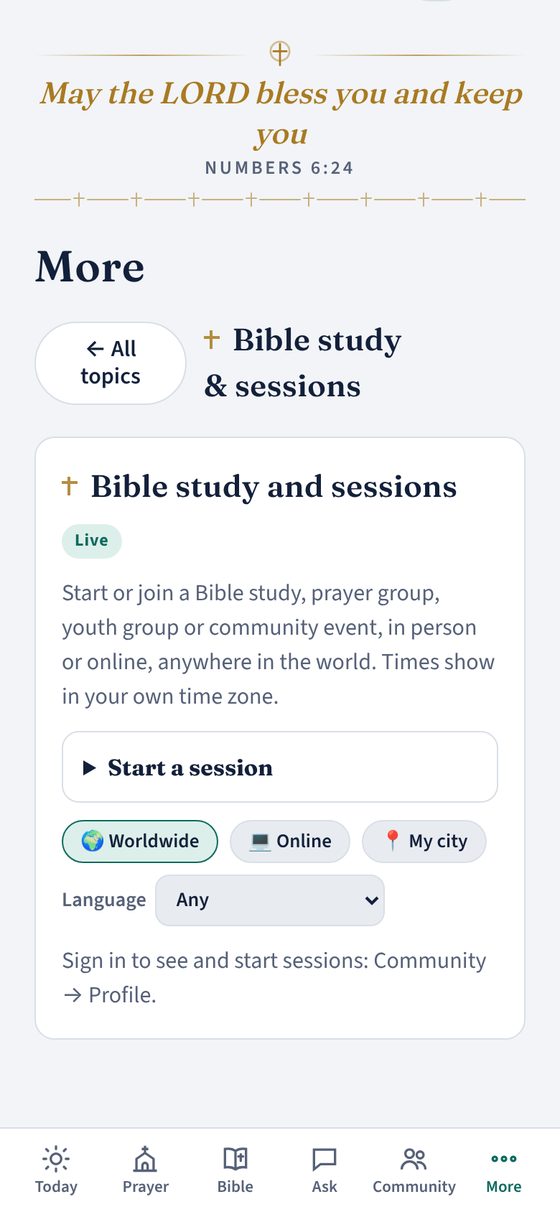
Tap More to see every other feature, grouped into Faith, Family, Daily life, Community and Account. Type in the search box at the top to find anything, for example "Lent", "giving" or "kids". Tap ← All topics to go back.
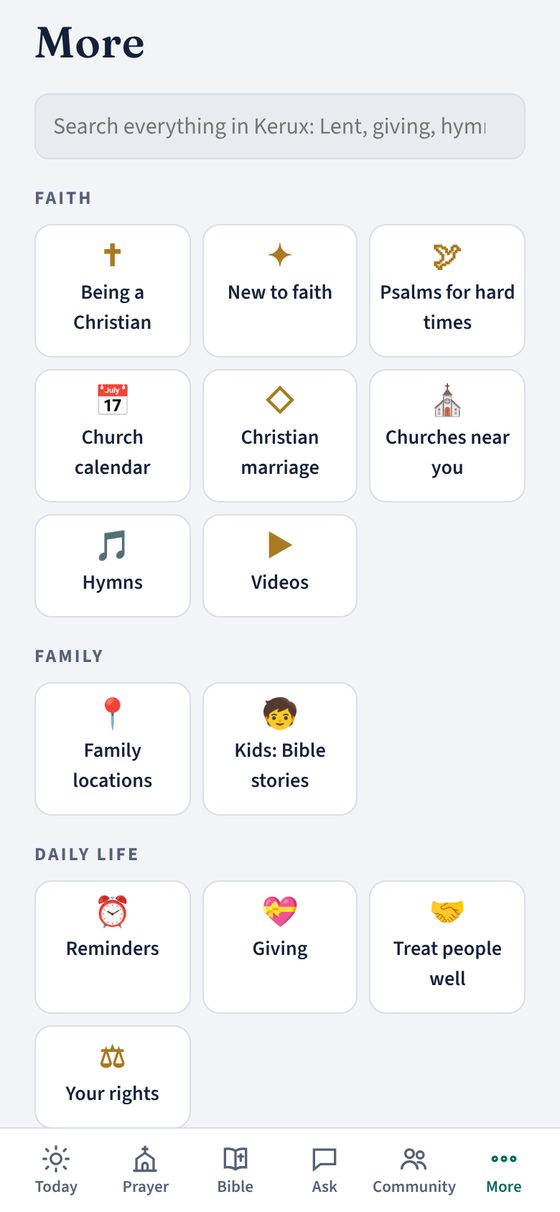
Faith
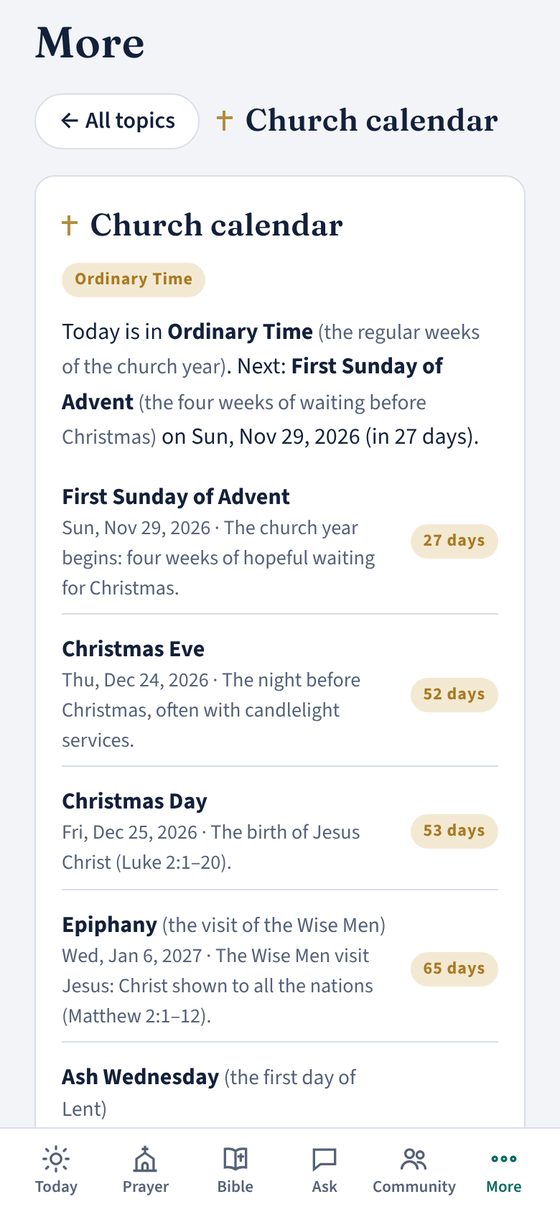
Family
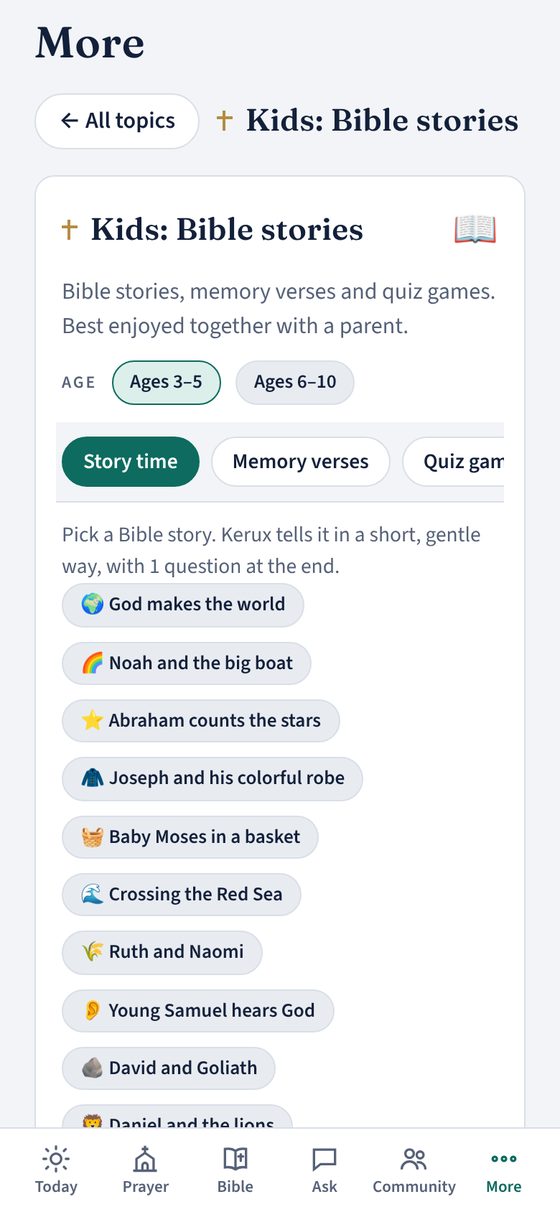
Daily life
Community
⚙️ Settings & subscription
Settings
More → Settings:
- Your language: changes the app and Kerux's answers. Nearly 80 languages.
- Make text larger for easier reading.
- Your city, for finding churches and sessions near you, and your prayer reminder times and sounds.
Light or dark mode follows your phone's setting.
Subscription
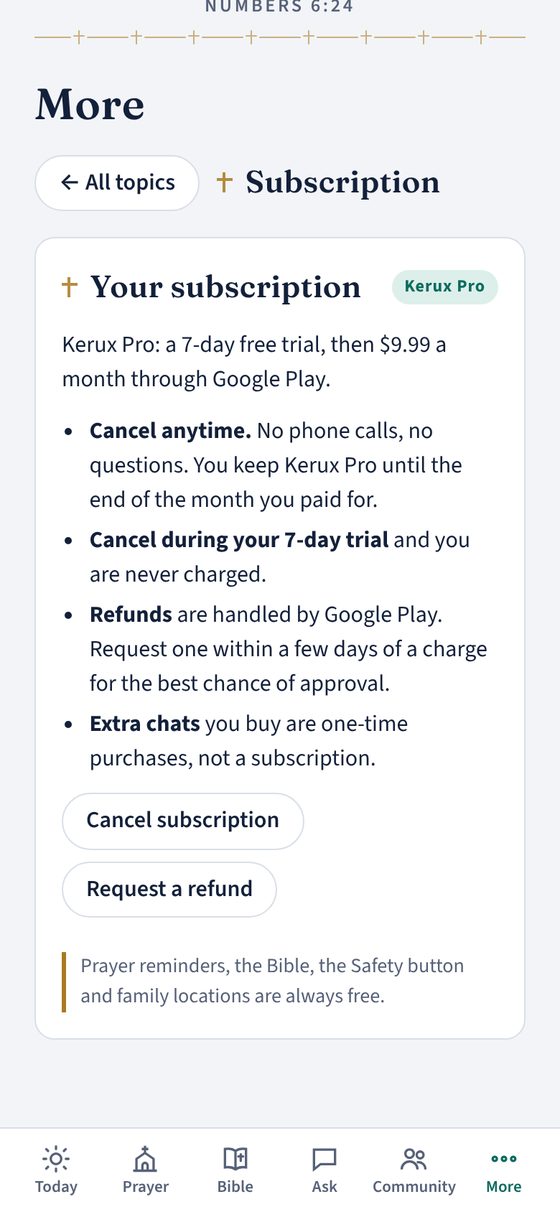
More → Subscription shows your Kerux Premium plan. Kerux Premium is a 7-day free trial, then $9.99 a month through Google Play.
- Cancel anytime with Cancel subscription. You keep Premium until the end of the month you paid for. Cancel during the free trial and you are never charged.
- Refunds: tap Request a refund.
- Got a new phone? Sign in with the same Google account and your subscription comes back.
- Kerux chats this week shows how much of your weekly chats you've used, when they reset, and any extra chats you bought. Tap Get more chats to add more.
Feedback
More → Feedback: pick what it's about, write your remarks and tap Send feedback. We read every message.
❓ Questions & fixes
- Ask Kerux doesn't answer.
- Check that you're online, then tap Try again. Make sure you have the latest version of Kerux from Google Play.
- My prayer reminders don't ring.
- Allow notifications for Kerux in your phone's settings, and turn off battery saving for Kerux. Then check Prayer → Reminders: make sure reminders are turned on and that time isn't set to "Off".
- The reminder rings at the wrong time.
- Reminders follow your phone's own clock and time zone. Check your phone's time, then open Prayer → Reminders and set the times you want.
- My family can't see my location.
- Check that you tapped Start sharing, that you chose them (or sent them the link), and that Kerux is open on your phone.
- I didn't get the sign-in email.
- Check your spam folder, wait a minute, then tap Send my code again.
- How do I cancel?
- More → Subscription → Cancel subscription, or in the Google Play Store app → Payments & subscriptions.
- Is my information private?
- Yes. Kerux does not sell your data, and your prayer journal never leaves your phone. Read our privacy policy.